
When running domain controllers in a virtual environments, you often run into situations where the time drifts. Your server’s time may appear a few minutes behind after a shutdown, restart, high CPU latency or after snapshots or backups. This happens because in a virtual environment , the server has no hardware clock to keep time at a steady pace, and as a result, time can become skewed.
Since computers and servers typically obtain their time from the primary domain controller (PDC), a virtual PDC with the wrong time can create problems. Security tokens depend on accurate time, so authentication, 2FA and API’s can cease to function properly if the domain’s time is inaccurate.
To fix time skew on a domain, first, locate the authoritative time server for the domain. This is done using the command w32tm /query /source or w32tm /query /status. These commands will display the name of the server that is responsible for keeping time for the domain.
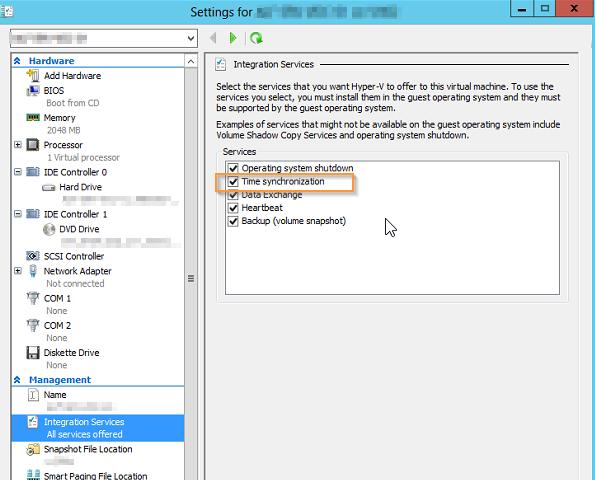
Locate the Hyper-V server that hosts the time server and make sure that time synchronization is checked on the PDC host as shown below. This will ensure that the virtual PDC is synchronized with the Hyper-V host which in turn takes it time from the hardware based RTC (real time clock).
The RTC is accurate but not infallible. Weak or drained batteries can create problems which affect time and date. Also, the RTC may not be up to the minute or second, as you would get from a time service such as https://www.time.gov/.
To fix this, set the Hyper-V host server to synchronize it’s own time to a time service such as NIST. To do this, run the following command on the Hyper-V server:
w32tm /config /manualpeerlist:”time.nist.gov,0x8″ /syncfromflags:manual /reliable:yes /update
After running the command, check if it was successful by running the /query /source options in w32tm again, it should display that the time server is now time.nist.gov.
Finally, execute the command w32tm /resync to synchronize the clock with the NIST time server.